
Starting a Group chat
To create a new chat:
Switch to the ‘Chats’ tab and press on the icon at the bottom of the screen.
Press on the  icon to create a new ‘Group’ chat.
Enter the name of the group chat you would like to create.
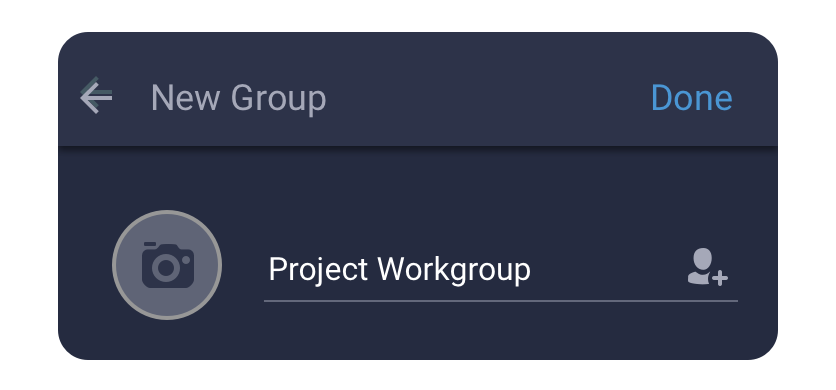
Tap on the icon to add colleagues to the group.
Select participants for this group chat from the list and press ‘Done’.
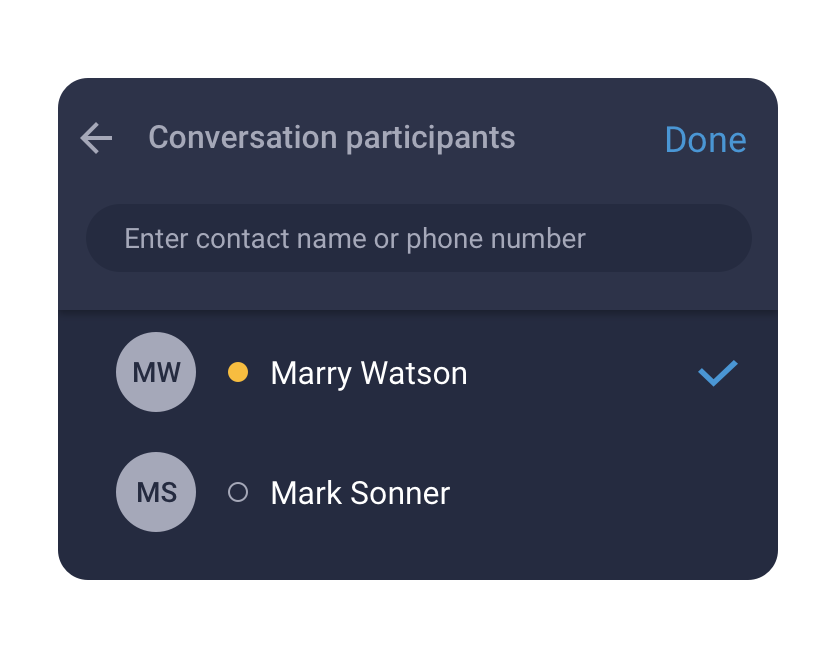
Now you can select who, aside from you, will be this group’s Admin and will have the right to add or remove participants to this group.
Press the ‘Edit’ button to edit the list of admins or participants.
To set the avatar icon for this group, press thecamera iconto the left of the group name.
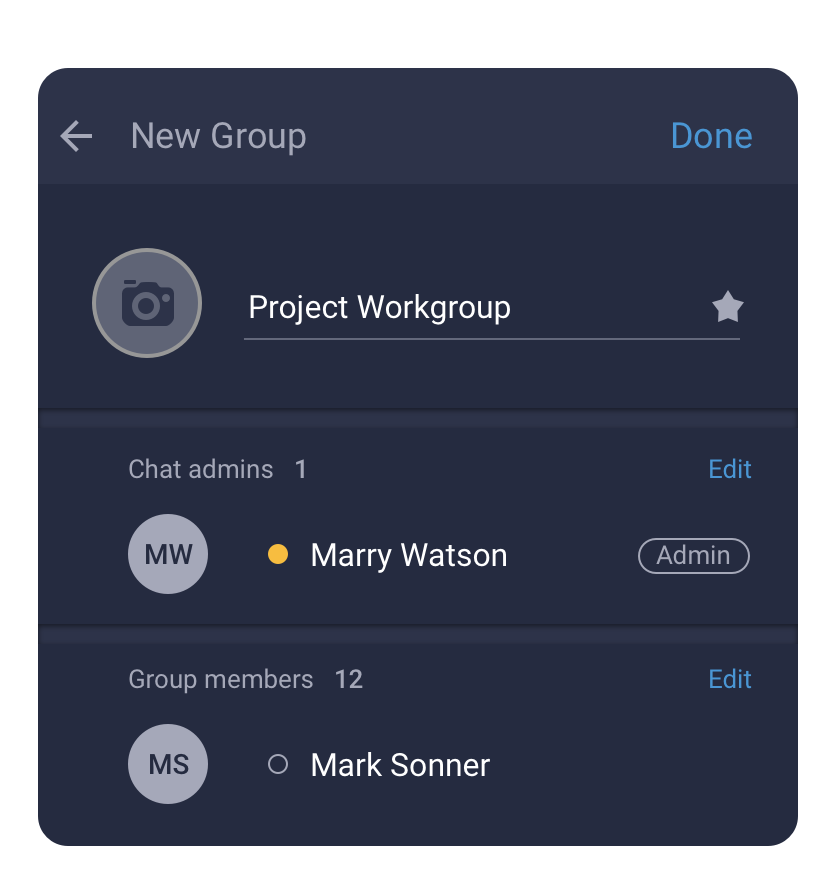
After editing the lists of participants and admins, press ‘Done’ to create a group chat.