
During a call: Hold, DTMF, Recording
During a call, you can transfer a call, put a call on hold, create a conference, and much more. You can access those features by utilizing the UI components described below:
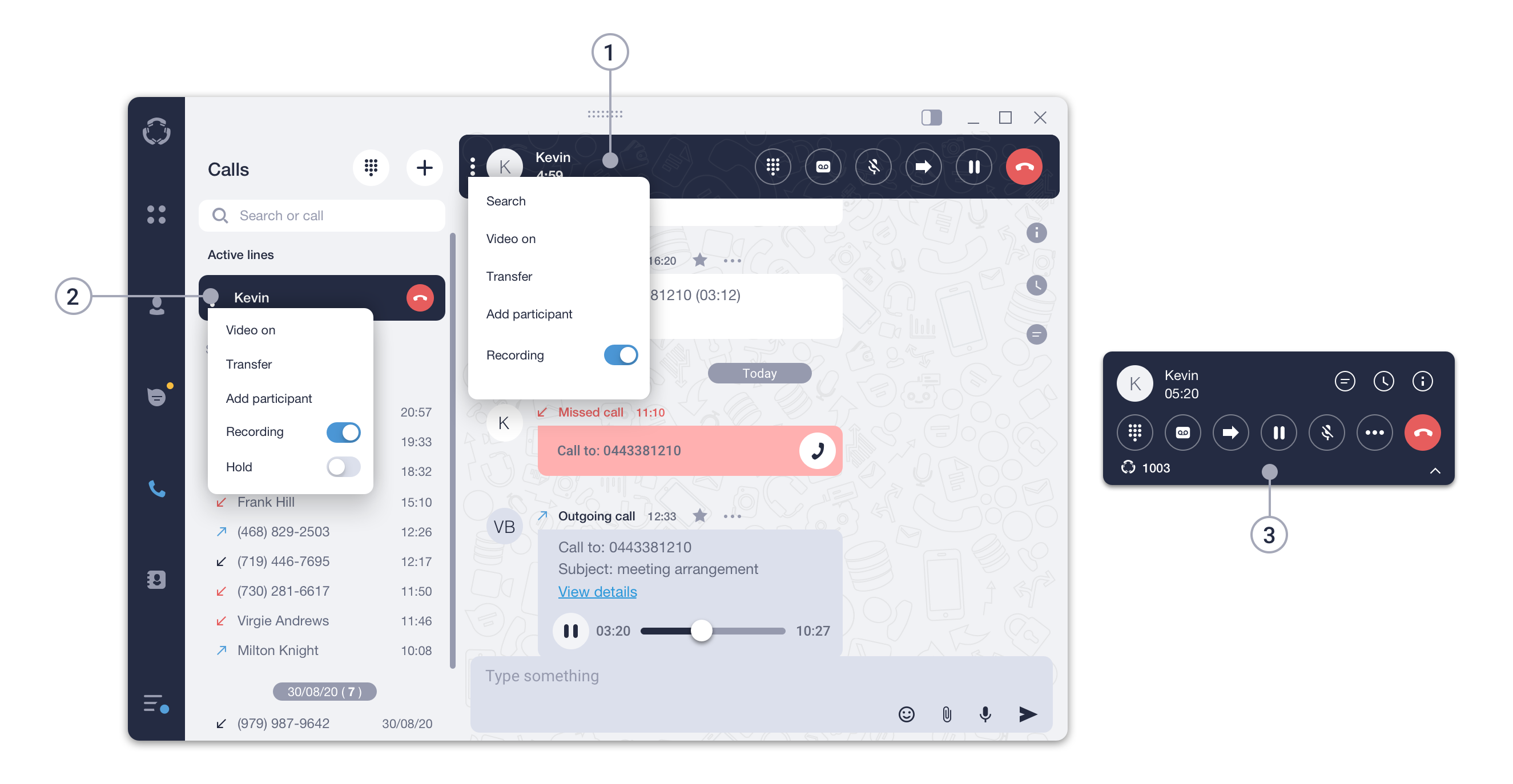
- Call panel. You can access a call panel by clicking on a contact you’re currently talking to in the list of contacts, chats, or calls, or by double-clicking on an Active Line.
- Active lines panel. This is where all your active calls will be displayed.
- Pop-up window. This panel will automatically pop up if a contact you’re talking to is not selected in the tabs panel.
Put a call on hold
To put a call on hold:
Click the icon on the Call panel or in the Pop-up window.
OR
Click on the icon in the Active Lines panel and choose Hold from the dropdown menu.
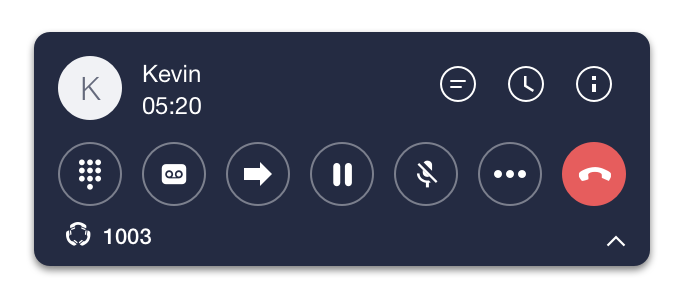

To resume a call from hold:
Click the same icon again to resume.
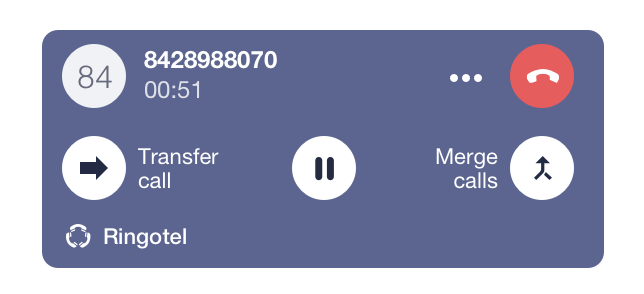
How to send DTMF-signals
Click on the icon on the Call panel or at the Pop-up window to open the dial-pad. You can use it to send a DTMF signal during a call.
Please, note that the dial pad from the Search Bar area doesn’t transmit DTMF signals.
Turn personal call recording on/off *
To turn the call recording on/off during a call:
Click the icon on a Call panel or Pop-up window.
OR
Click on theicon of an Active Line and select Recording from the drop-down menu.
* Please check the availability of this feature with your PBX Administrator.