Sending an SMS message
Availability of this feature depends on your service configuration. Contact support for details.
Looking for an Android or PC/Mac version of this article?
To send an SMS message to a contact or a phone number:
- Press on the
 icon at the top right corner of the screen and then tap on the SMS menu item to create a new chat.
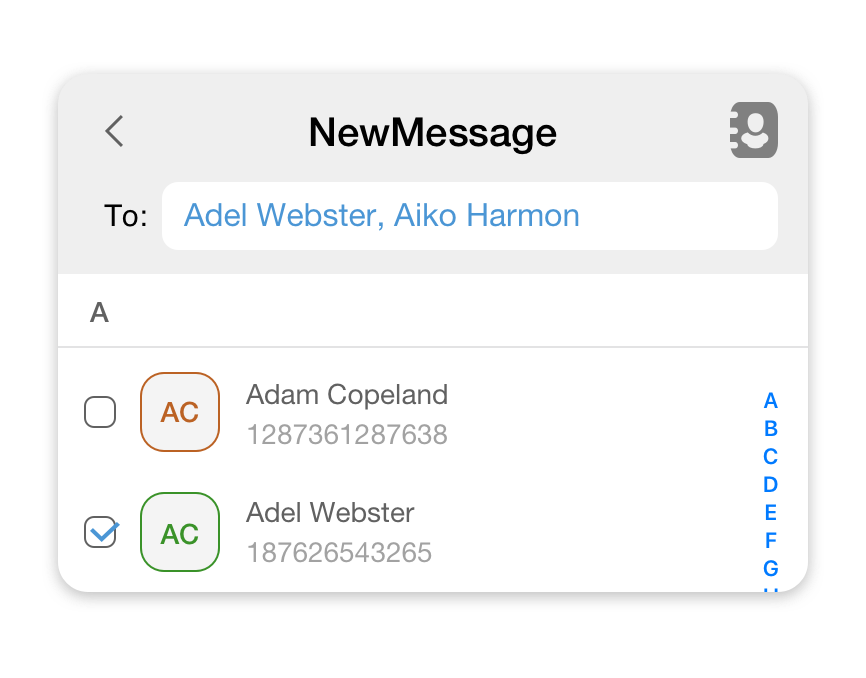
 - Select a contact you’d like to send an SMS message to or type in a phone number at the top of the screen.
- Tap on the text area at the bottom of the screen and type in your message.
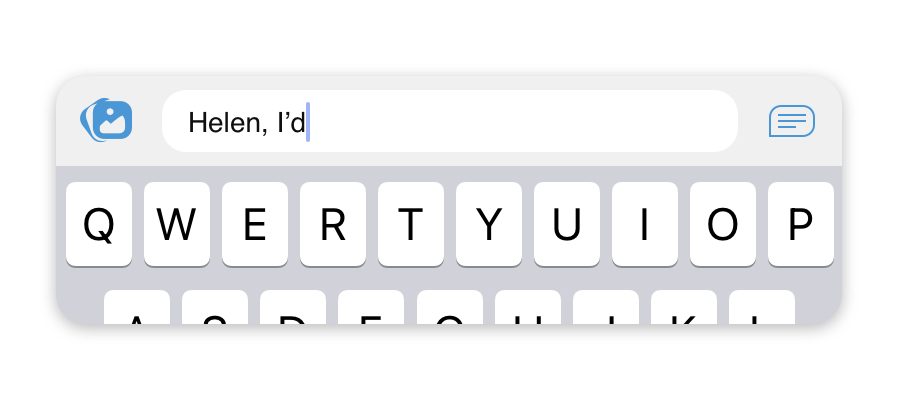
- After you’ve finished typing your message, press the
 icon to send it.
* Please check the availability of this feature with your PBX Administrator.
Sending voice messages
To send a voice message to your colleagues who are using the app:
- Open a chat with a colleague(s) you would like to send a file to.
- Tap on the
 icon at the bottom of the screen.
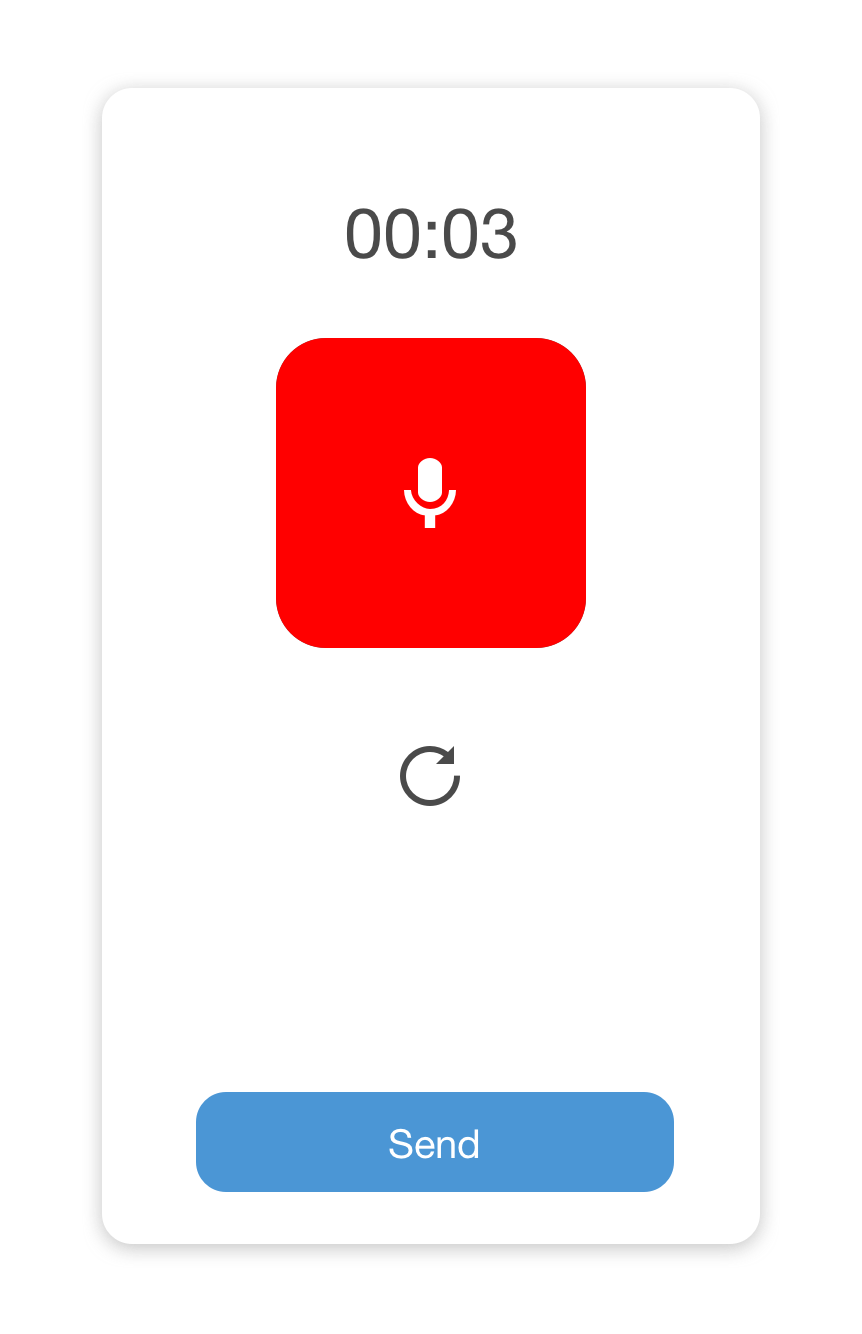
 - The recording screen will pop up where you’ll be able to pause/resume and reset your voice recording.