
Viewing and sharing a call recording
Availability of this feature depends on your service configuration. Contact support for details.
Looking for an PC or iOS version of this article?
When you record a call using your mobile or desktop app, this call recording gets synchronized between all your devices. It means that you can listen to the recording of a call on your mobile device, even if it was recorded from your desktop application.
To access a call recording from your mobile app:
- Open yourconversation historywith a contact.
- Calls that have a voice recording will have an
 icon.
icon.
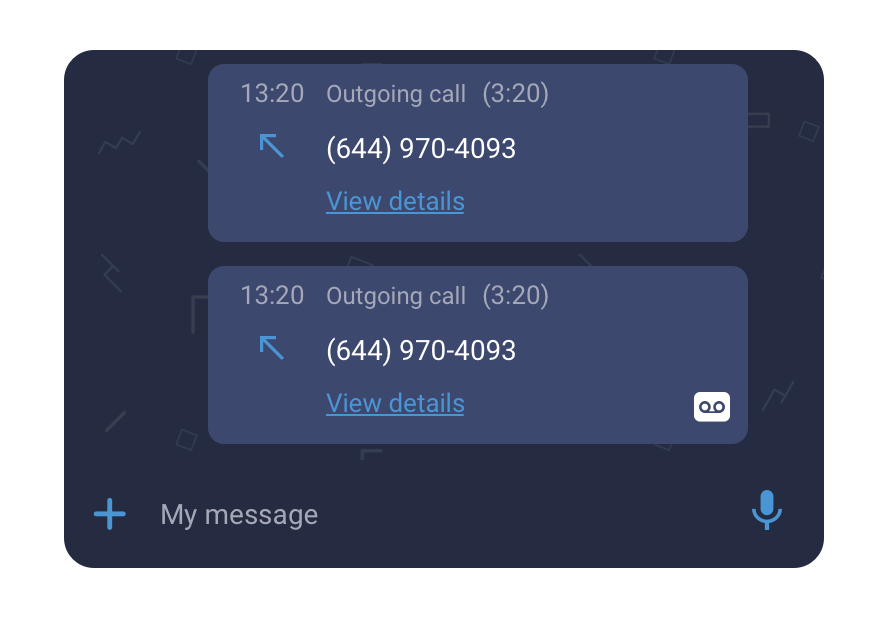
- Tap on a ‘View details’ link of a call which recording you’d like to listen to.
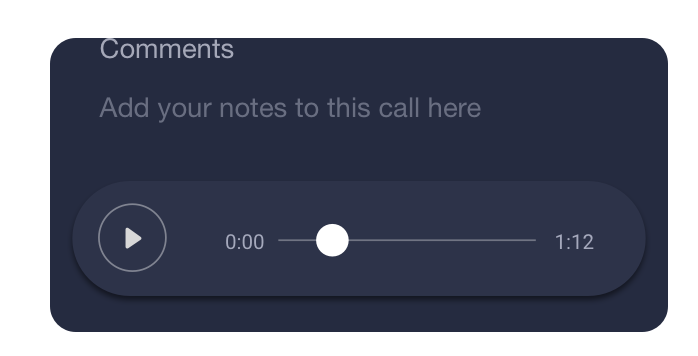
- On the Call Details panel, press the
 icon to playback a call recording.
To share a call recording with other applications on your device:
- Open the details of a call with the recording you would like to share.
- Tap on the menu icon
 .
. - Tap on the "Share recording".
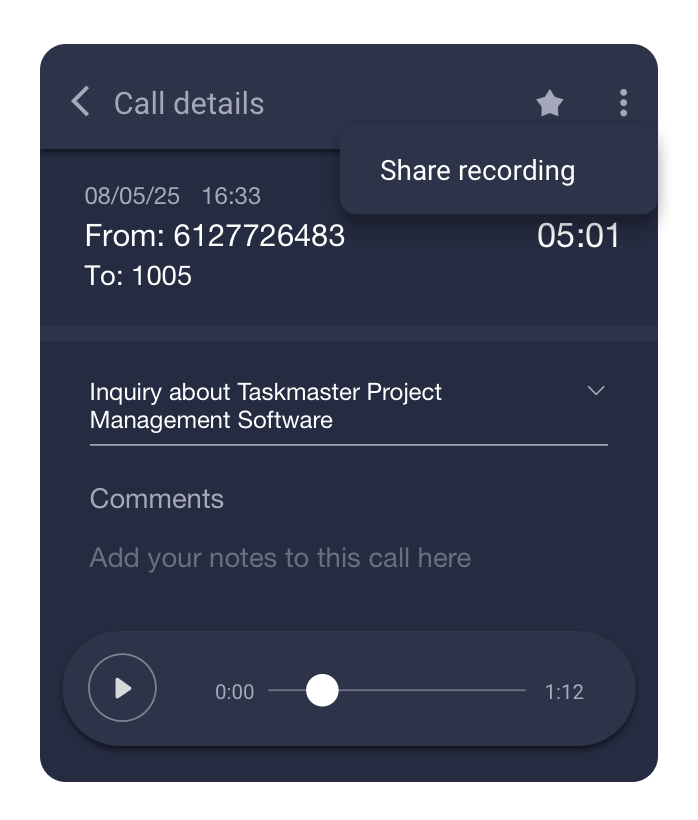
- Choose an application on your device where you’d like to send a recording.
You can choose this same application from the list to share a recording with your colleagues who use this app.
* Please check the availability of this feature with your PBX Administrator.