
Working with messages
Copying a text message
To copy to a specific message in a chat:
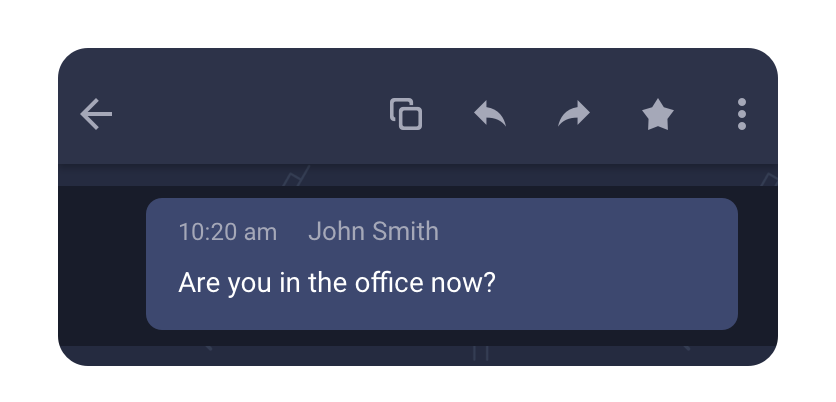
- Long-tap on a message that you’d like to copy.
- In the top icon bar, press the
 icon.
icon.
Replying to a message
To reply to a specific message in a chat:
- Long-tap on a message that you’d like to reply to.
- In the top icon bar, press the
 icon.
icon.
- At the bottom of the screen, right above the Text Area where you type your messages, you’ll see the message that you’re replying to.

- Type your reply in the text area at the bottom of the screen.
- Press the
 icon to send your reply.
Forwarding a message
To transfer a message to another colleague(s):
- Long-tap on a message that you’d like to transfer.
- In the top icon bar, press the
 icon.
icon.
- Select contacts or group chats to which you would like to forward a message.

Share messages with other applications on your device
To share a message with other applications:
- Long-tap on a message that you’d like to share.
- Tap on the menu icon at the top right corner of the screen and choose ‘Share’ from the dropdown menu.
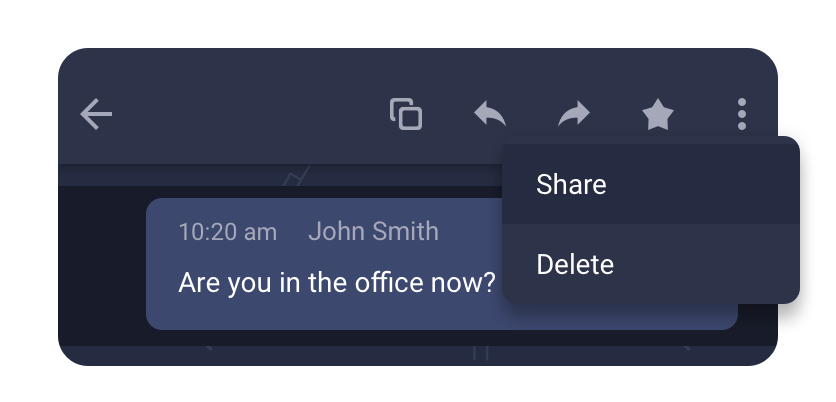
- Select an application on your device you’d like to share a message with.
You can choose this same application from the list to share a message with your colleagues who use this app.