
Working with contacts
A Contact’s Profile contains all the details regarding a person or an organization, including the history of communication with your company.
To open a contact’s profile, simply tap on a contact from your contacts list , or select a ‘Contact Info’ option from a dropdown menu on a chat screen.
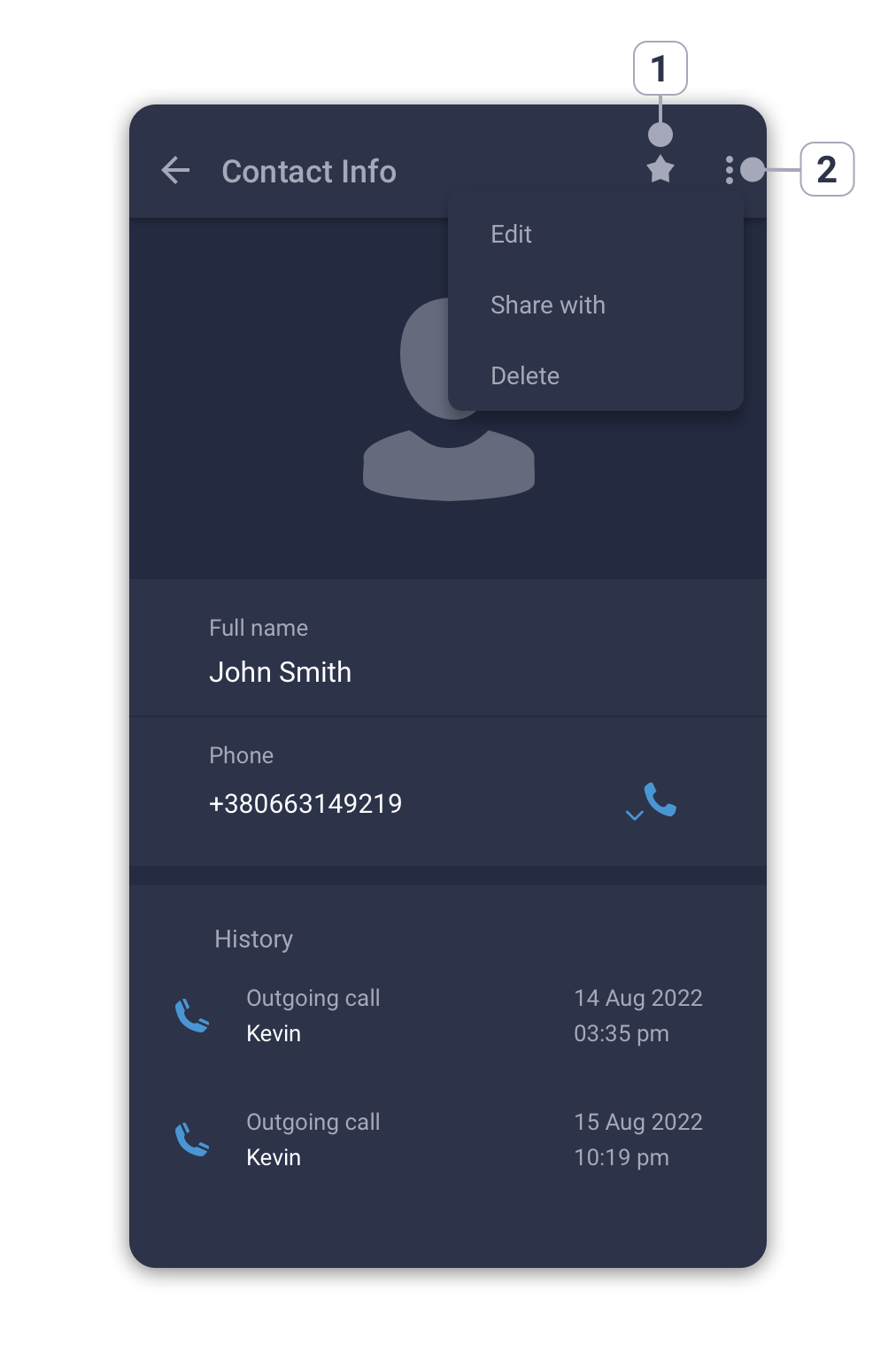
- Add contact to favorites.
- Share contact.
- Contact's menu.
Edit a contact
To edit a contact tap on the menu icon in the contact’s profile and choose ‘Edit’ from a dropdown menu.
Delete a contact
To delete a contact:
- Long-tap on a contact in the contacts list.
OR
- Tap on themenu icon in the contact’s profile and choose ‘Delete’ from a dropdown menu.
Add a contact to favorites
To add a contact to favorites, open a profile of contact and tap on the icon.
icon.
Share a contact
To share a contact with your colleagues:
- Open the profile of a contact you want to share and tap on themenu icon.
- Select "Share with" from the dropdown menu.
- Select colleagues or chat groups you would like to share this contact with.
- Tap on the
 icon to confirm and share the contact.