
iOS app Overview
After you’ve logged into the app, you’ll see a user interface as shown in the screenshot below:
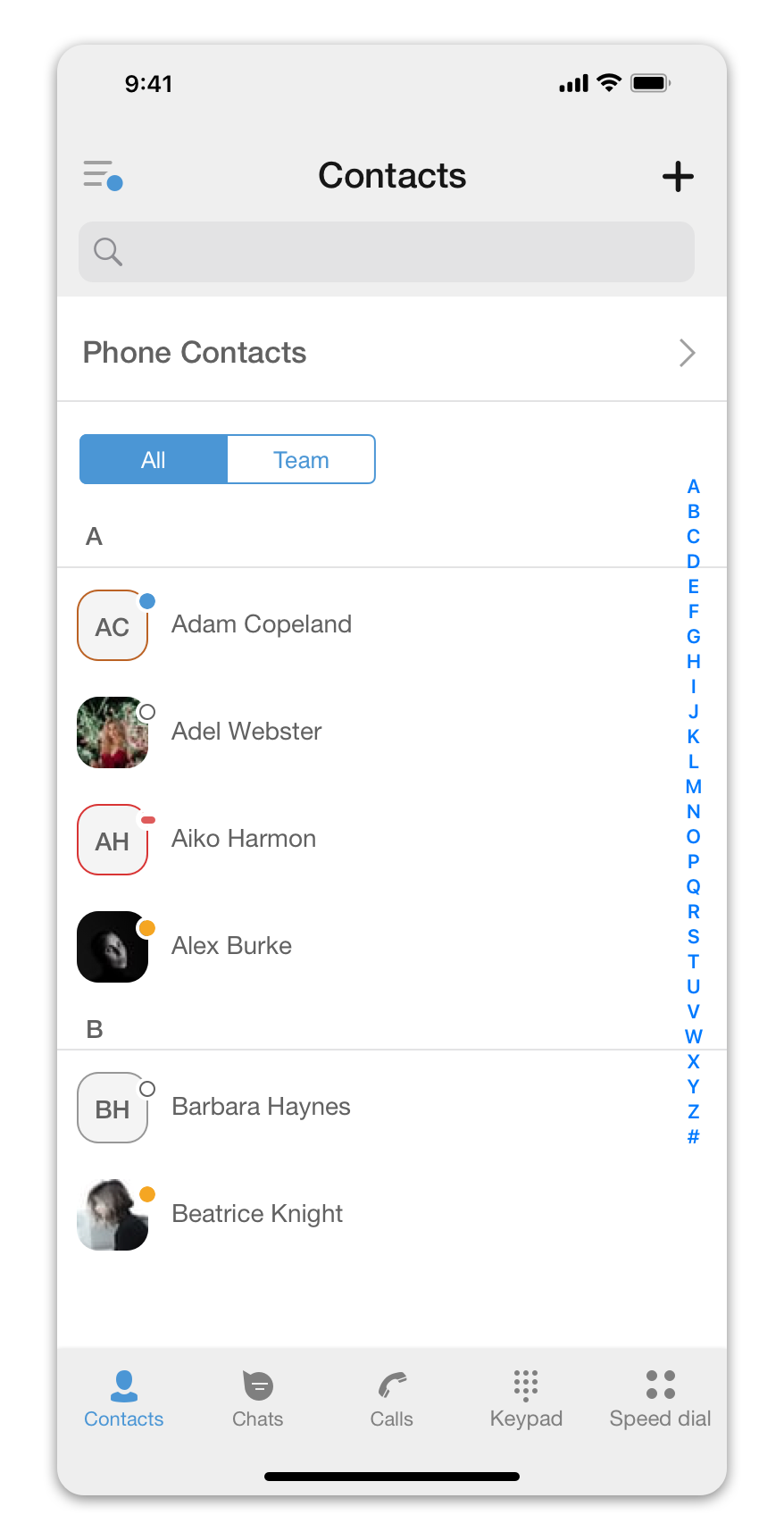
 Menu.Here you can find all the app settings, including your profile and presence status selection.
 Contacts.This is where you can find your colleagues and all your business contacts.
 Chats.Here you can chat with your team, share files, photos, etc., and send SMS to your external contacts (only if the SMS feature is enabled for your account in the admin portal).
 The callstab is where you can dial a phone number to make a call and view the history of all the calls you’ve made.
 Keypad.Use this tab to dial a phone number or to access your phone’s Contacts List.
 Speed dial.In this tab, you or your PBX administrator can add phone numbers, emergency contacts, and buttons for quick access to various PBX features.