
Starting a conference call
Looking for aniOSorAndroidversion of this article?
There are two ways to initiate a conference call from your desktop app:
Adding participants to a call
To make a conference during a call:
- While you are on a call with the first participant, make an outgoing call to a person you want to add to the conference. Thus putting the first participant on hold.
After you’ve successfully connected with the second participant:
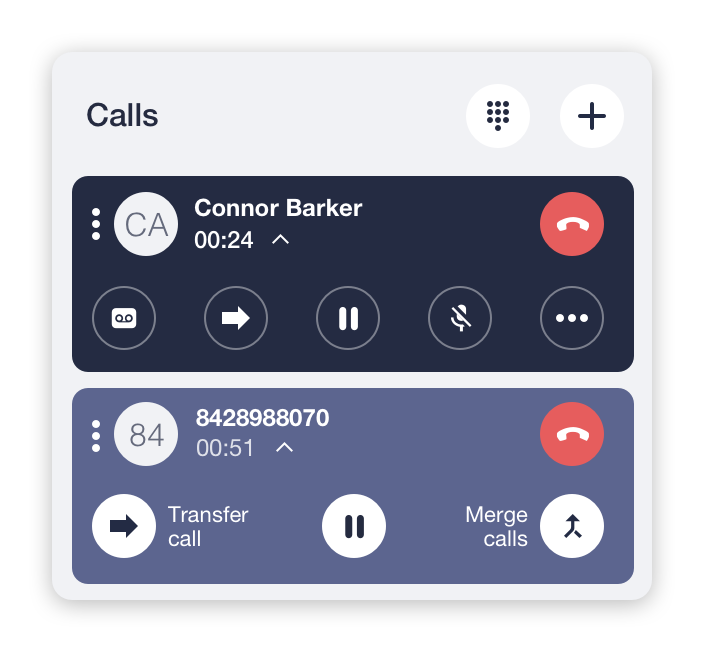
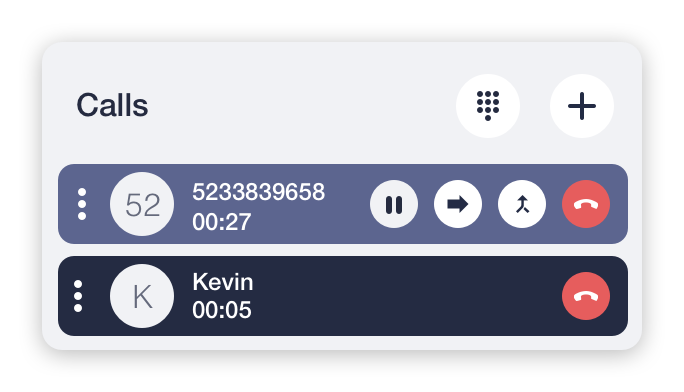
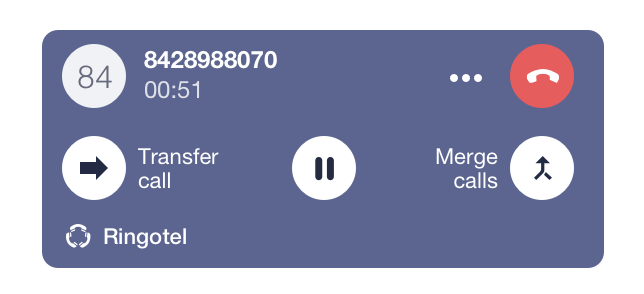
- Click the Merge button
 on the Active Line or Pop-up window . Your two active lines will merge into one.
Repeat the above steps to add more participants to a conference.
Audio&video calls in group chats
To organise an audio conference with predefined lists of participants, you need to:
- Create a group and add participants from the list of users.
- Open a group chat you’ve created and click on the
 icon at the top right corner.
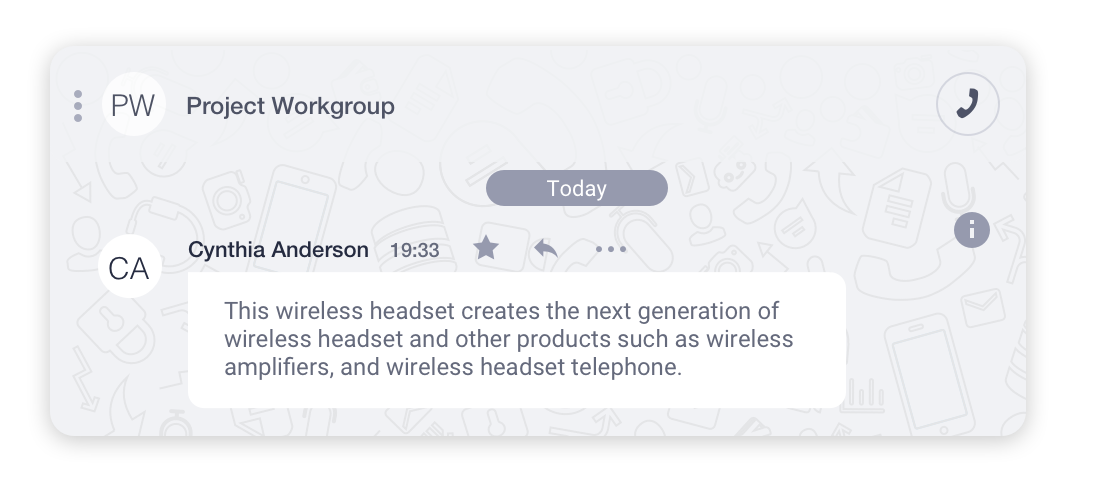
To create a video meeting, click the "video" button and confirm the action.
If you don't see a video button, it means that this feature is disabled for your account. Please contact your system administrator for more information.