
Call transfer
Looking for an Android or iOS version of this article?
Blind transfer
To transfer a call:
- Click the Transfer icon
 on a Call panel or Pop-up window .
OR
- Click on the menu icon
 of an Active Line and select Transfer from the drop-down menu.
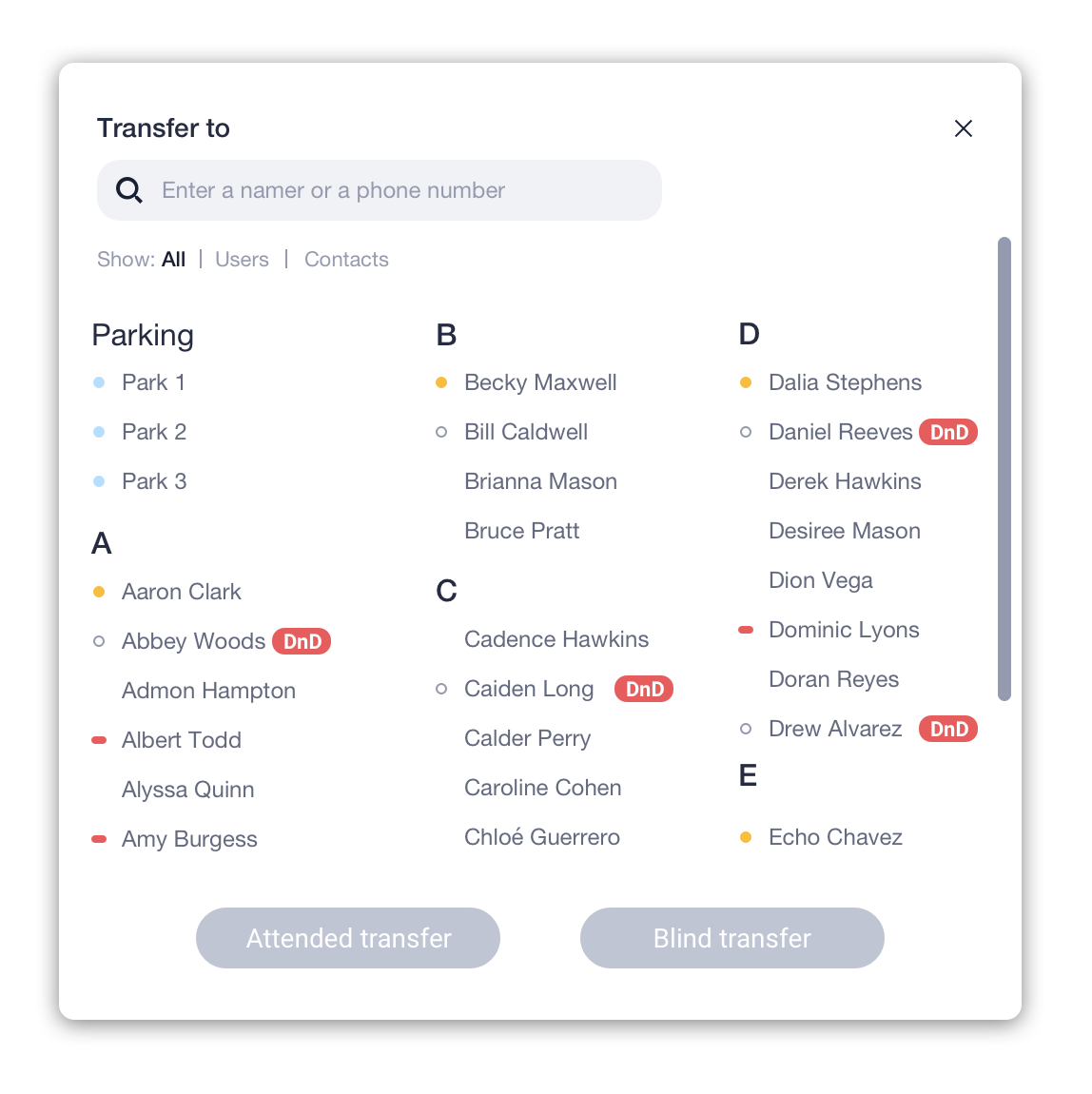
 - Choose a contact you want to transfer a call to from the list or enter a new phone number in a Search field and click on the Blind transfer icon.
Attended (warm) transfer
To make an attended (warm) transfer:
- Follow steps 1 and 2 like for Blind Transfer but press the Attended transfer button instead.
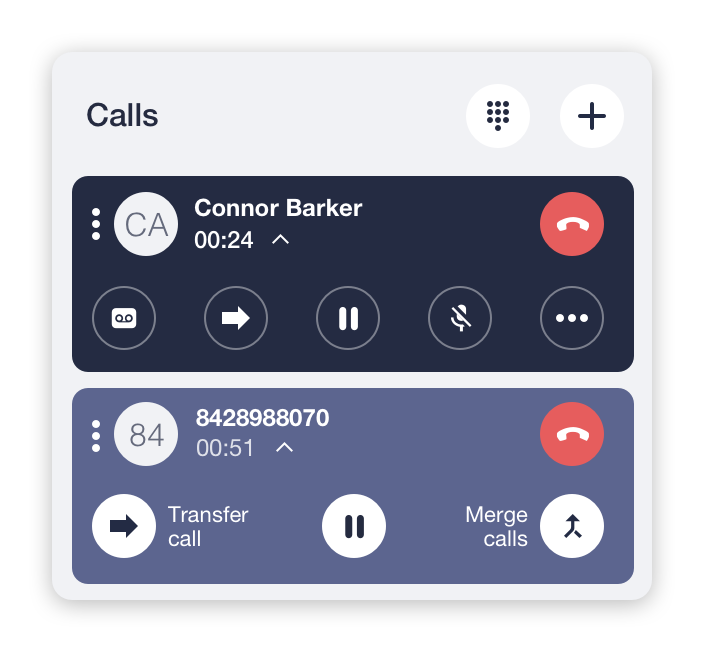
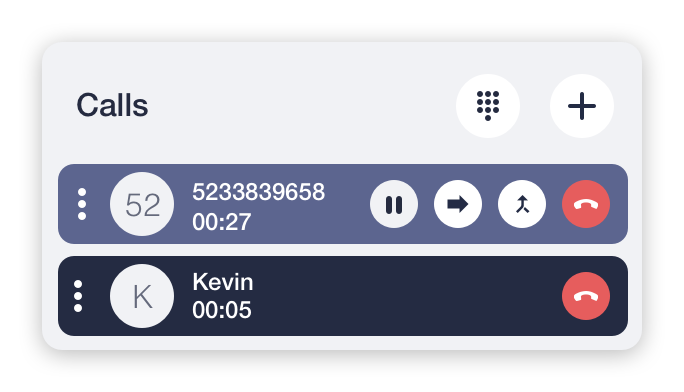
An additional active panel will appear for the second active call while the first active call will be put on hold automatically.
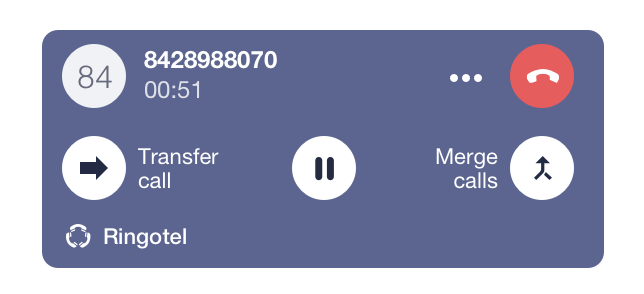
- Click on the Transfer button at Active Line or Pop-up window.
Alternatively
You can also transfer a call in the following way:
- During an active call, initiate a new outgoing call . The current call will be placed on hold automatically.
- Click on the Transfer button at Active Line or Pop-up window .