
Transfer a call
Looking for an Android or PC/Mac version of this article?
To transfer a call:
- During an ongoing call, press the ‘Transfer’ icon

- Enter a phone number or choose a contact from the list, where you want to transfer a call.
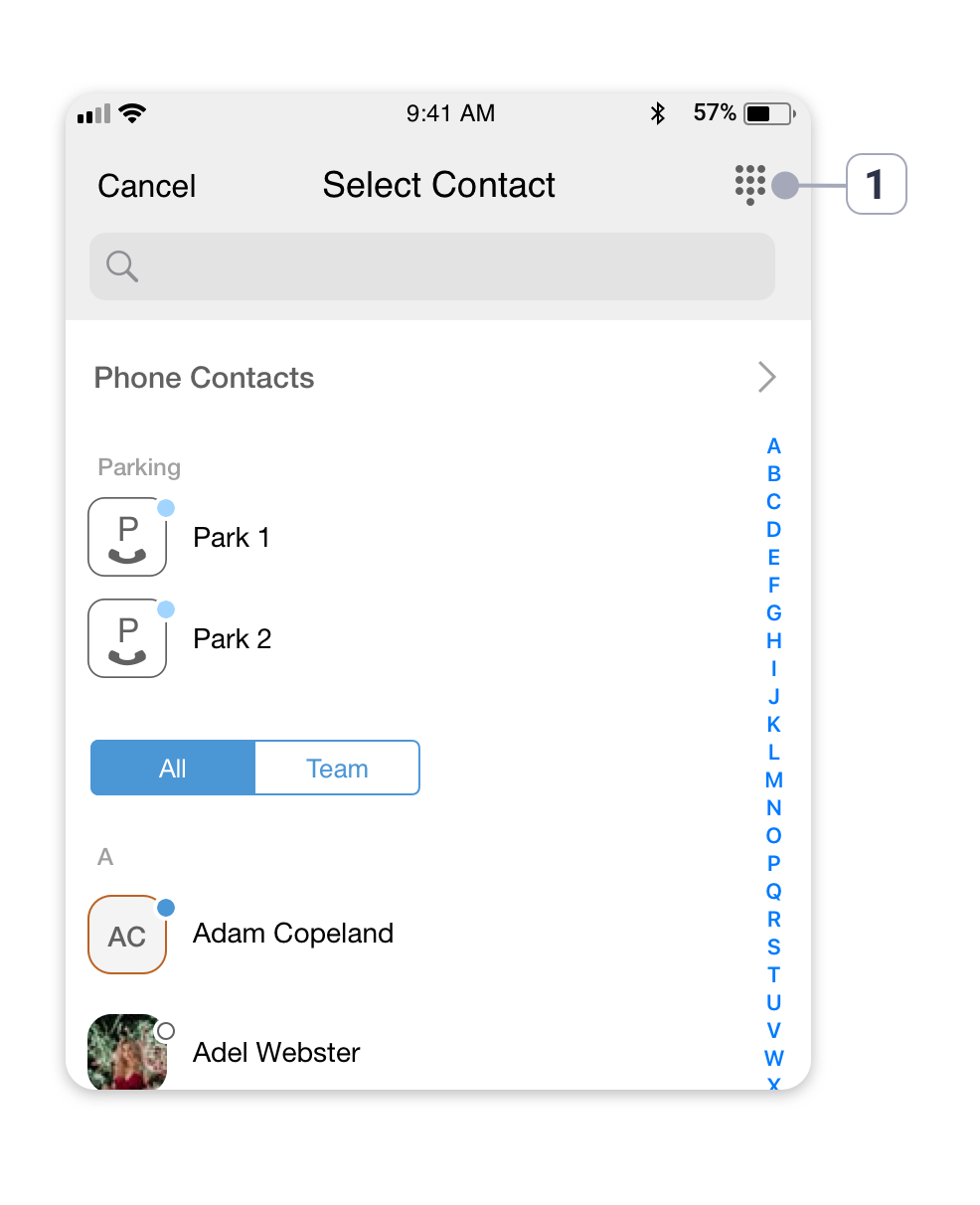
1. Tap on the ‘Numpad’ icon to dial a phone number.
- Choose if you would like to do a Blind or Attended transfer.
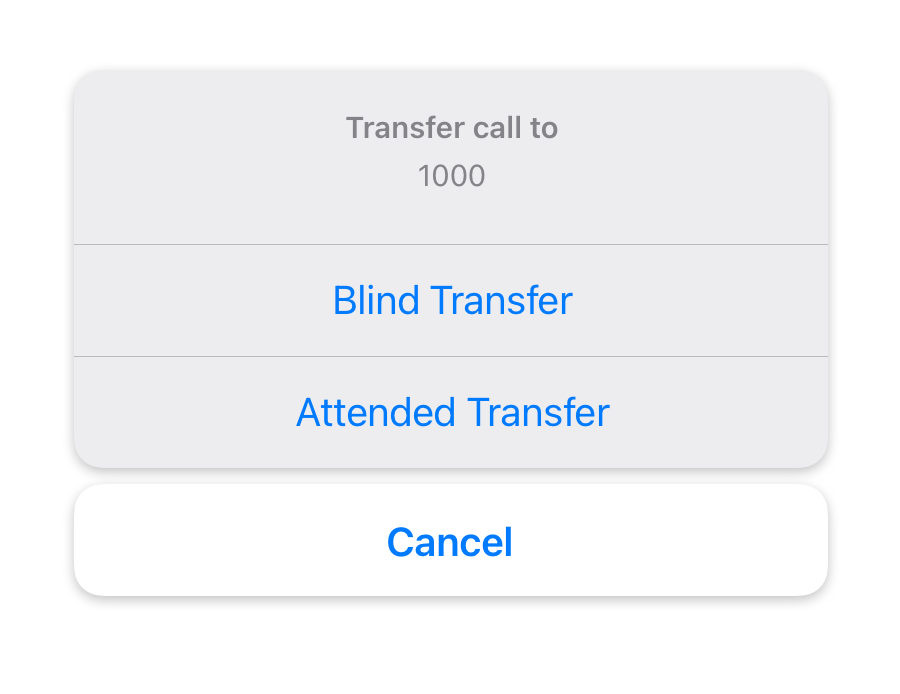
If you choose a ‘Blind transfer’, you will be disconnected from this call while the caller will be transferred to the number you selected.
In the case of ‘Attended transfer’, the caller will be put on hold, while the app will make an outgoing call to the number/contact you chose to transfer a call to.
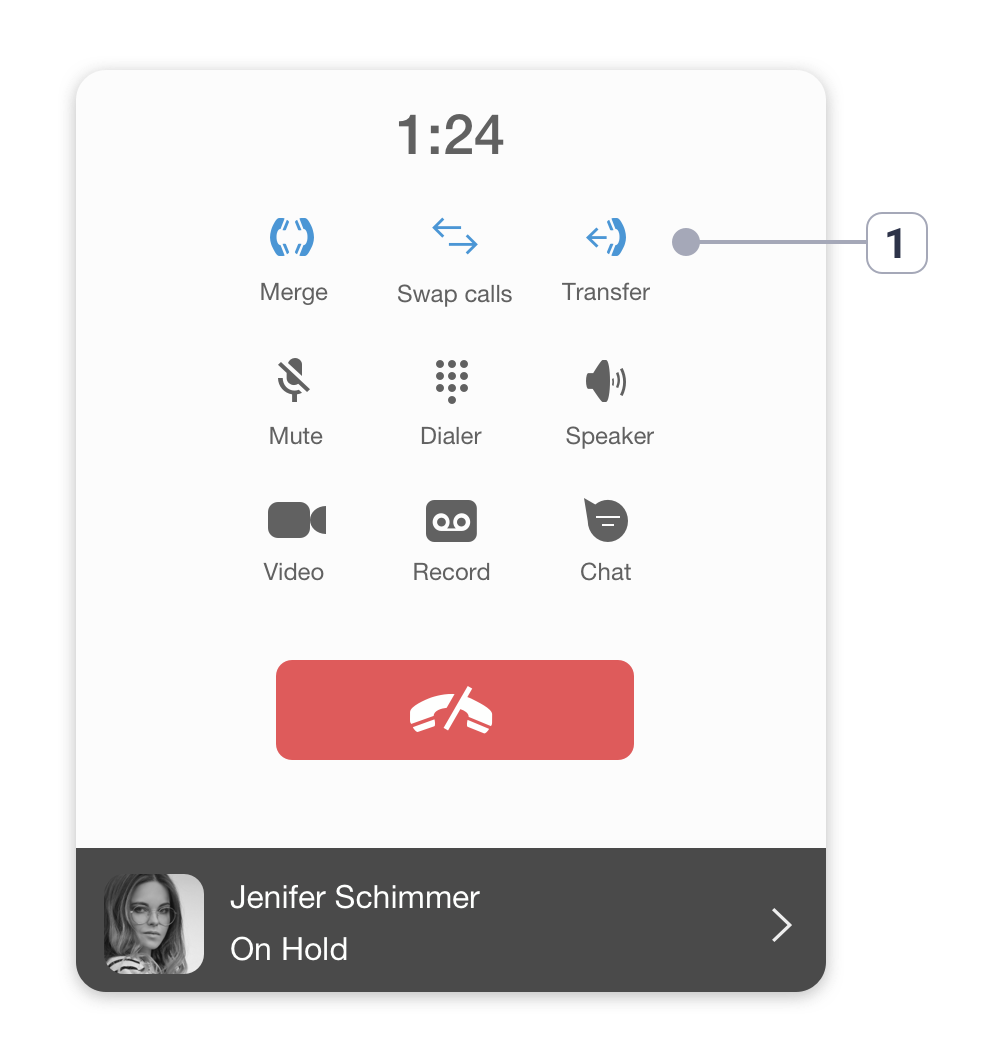
- Press the highlighted ‘Transfer’ button (1) to confirm the call transfer.